

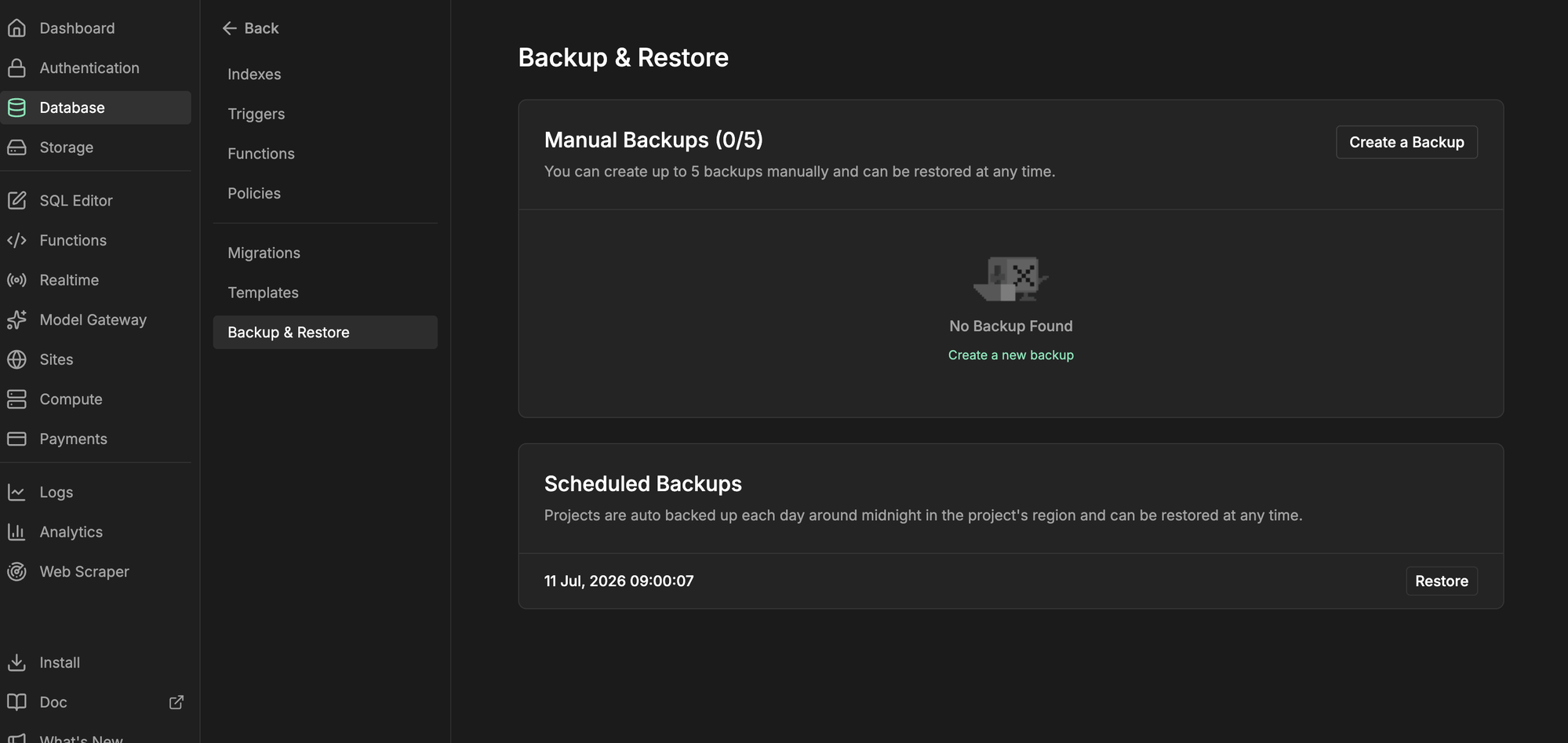
Here is where it lives in the UI: Database → Backup & Restore.
Scheduled backups
InsForge Cloud takes a full backup of every active project on a paid plan once a day, retained for 7 days. The Scheduled Backups list shows when each backup expires, and any of them can be restored at any time. Manual backups don’t affect the daily schedule.Manual backups
Click Create a Backup before a risky change and optionally give it a name. The backup runs in the background; the list shows its status, size, and creation time, and lets you rename or delete it. The Free plan includes 1 manual backup slot; paid plans include 5. Manual backups are kept until you delete them.Restore
Click Restore next to any completed backup — scheduled or manual. Restoring replaces the current database with the backup: the project goes offline during the restore, you lose data created after the backup, and you can’t undo the action. Take a manual backup first if you’re unsure.Self-hosting
Self-hosted deployments have the same Backup & Restore page for manual backups and restores. Backups are stored alongside your project’s storage (local disk, or your S3 bucket when configured). The official Docker image needs no extra setup. Scheduled backups are available too, but run in your own backend rather than on InsForge Cloud. Turn them on from the Database Settings dialog (the gear icon in the Database sidebar, or Configure on the Backup & Restore page): pick a frequency — presets from every 6 hours to weekly, or any 5-field cron expression, evaluated in UTC and limited to at most one backup per hour — and a retention period. Expired scheduled backups are deleted automatically after each successful run; manual backups are always kept until you delete them. A backup missed while the server was down runs shortly after it starts again.More resources
- Database overview for how the database is exposed to your app.
- Database migrations to version schema changes instead of restoring to undo them.
- Database branching to rehearse risky changes on a copy.